A new device arrives with a clean screen, a full battery and settings chosen by someone who has never met you. Those defaults are built for convenience, and for the company that shipped the hardware. They are not built to protect your photos, your messages or the app you use to move money.
The useful changes take about an hour, once. Do them before you install a dozen apps, before you save the first photo, and long before anything goes wrong. Here is what to change first, and why each one earns its place.
Updates First, Because Everything Else Sits on Top
Connect to Wi-Fi and install every pending system update before you do anything else. A device still running the software it shipped with is the easiest kind of device to attack, and the fix is usually a single tap. Turn on automatic updates afterwards so you are not relying on memory: system updates, app updates, and the browser.
Browsers update themselves by default, but it is worth checking that the setting is on and that you restart when asked. An outdated browser is often the weakest link on an otherwise well-configured laptop, because most of what you do online passes through it.
Two smaller habits fit here. Delete the preinstalled apps you will never open, since each one is another thing asking for permissions. And if the device holds work files, check your employer's policy before adding a personal cloud account to it.
Lock the Screen Like It Actually Matters
Your passcode is not a formality; it is the key that unlocks the encryption underneath. Most phones encrypt storage by default, and that encryption is only as strong as the code protecting it. Four digits is a million guesses short of comfortable. A six-digit passcode, or a longer alphanumeric one, is a meaningful upgrade.
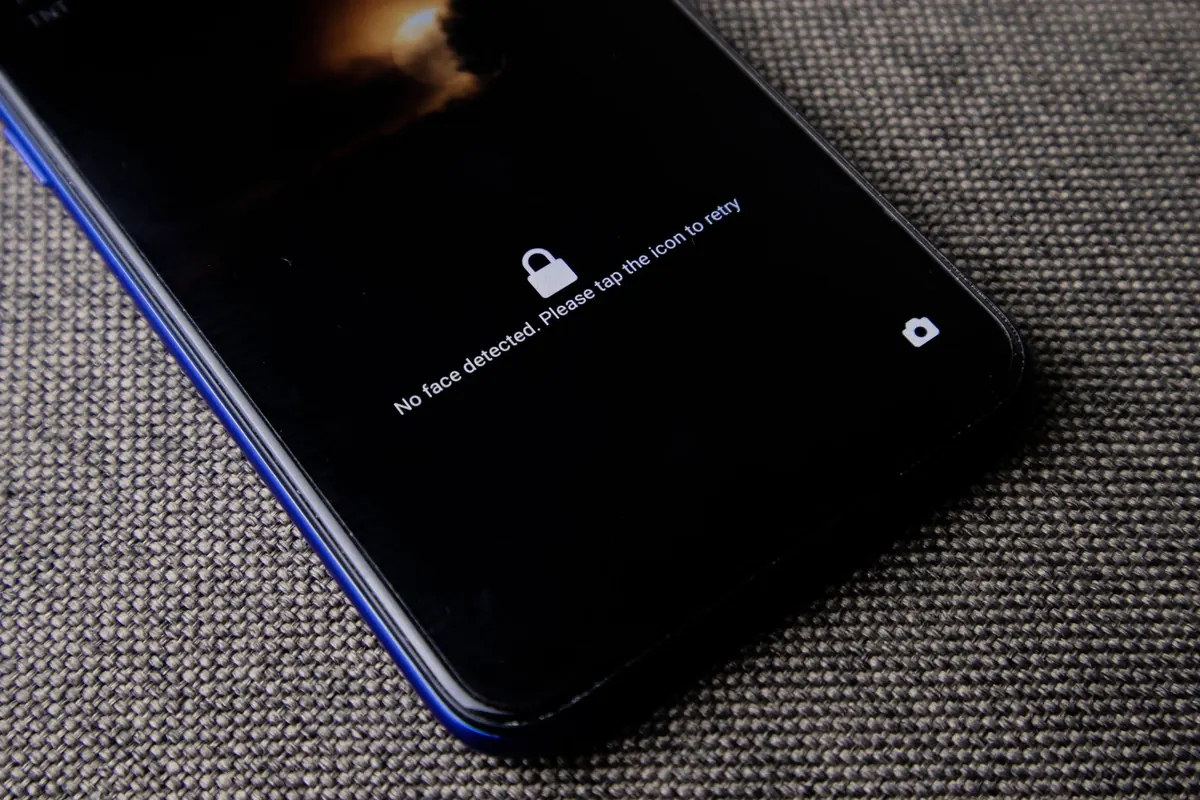
Pattern locks are the weakest option on Android — they are easy to read from a distance and leave smudges behind. Biometric unlock is fine and fast, but keep the strong passcode as the fallback rather than replacing it.
Then tighten the edges:
- Set the screen to lock automatically after 30 seconds, not five minutes.
- Hide message, email and banking previews on the lock screen so a stranger cannot read them at a glance.
- On laptops, require a password immediately after sleep or screen saver, and turn on FileVault, BitLocker or the manufacturer's device encryption.
- Switch on a SIM PIN, so your number cannot simply be moved into another phone.
Never hand your unlocked phone to someone who needs "one quick call" — use a guest profile or dial the number yourself. And tell family members your phone's passcode only if you would trust them with your email.
Backups and Recovery: The Two Settings That Save You Twice
A backup that has never been checked is a hope, not a plan. Turn on cloud backup for your phone or tablet, then open the settings and read the date of the last successful one. If it says three weeks ago, something has been failing quietly.
For laptops, pair encryption with a real backup: an external drive plus cloud storage, or two separate drives kept in different places. Encrypt the backup drive too, or you have simply made a second copy of your life that anyone can read. Try restoring one unimportant file now. You will learn more from that five-minute test than from any guide.
Account recovery deserves the same attention, because losing access to the account that controls your device is worse than losing the device. Set up two-factor authentication with an authenticator app rather than text messages if you can, save the recovery codes somewhere offline, and add a recovery contact or backup phone number. Keep the email address and phone number on that account current — an old number you no longer own can lock you out permanently.
Privacy Settings: Fix Them Before You Install Anything
App permissions are easiest to control during installation, when you are asked one question at a time. Once forty apps are running, you will not go back through them.
Give location access as "while using the app" unless an app genuinely needs it in the background. Set photo access to selected images rather than the whole library, where the option exists. Say no to microphone, camera and contacts unless the feature you actually use requires them. Then turn off ad tracking and reset your advertising ID, and check the privacy dashboard in your account — Apple, Google and Microsoft all list which apps touched your data recently.
On laptops, the defaults you want switched off are the ones you never use: file sharing, screen sharing, remote login, and open Wi-Fi auto-join. Set AirDrop or nearby sharing to contacts only. If your device was signed into a shared family account, sign out and use your own.
The 12 Settings, in One List
- Install all pending system and browser updates, then switch on automatic updates.
- Replace a four-digit PIN or pattern with a six-digit or alphanumeric passcode.
- Enable fingerprint or face unlock, keeping the strong passcode as backup.
- Set the screen to lock after 30 seconds.
- Hide notification previews on the lock screen.
- Turn on device encryption: FileVault, BitLocker, or the default on phones and tablets.
- Switch on cloud or encrypted local backup and check the last backup date.
- Turn on two-factor authentication for your Apple, Google or Microsoft account.
- Store recovery codes offline and add a recovery contact or number.
- Review permissions for location, camera, microphone and photos.
- Turn off ad tracking and reset your advertising ID.
- Enable Find My or Find My Device and add a contact number to the lock screen.
Small Differences Between Phones, Laptops and Tablets
Phones
Enable the emergency information on your lock screen — it can help someone reach a contact if you are hurt — while keeping medical and financial apps behind biometrics. If your carrier supports it, keep the SIM PIN on.
Laptops
Create a standard account for daily use and keep the administrator account separate. Day-to-day work rarely needs admin rights, and a standard account limits the damage from a bad download.
Tablets
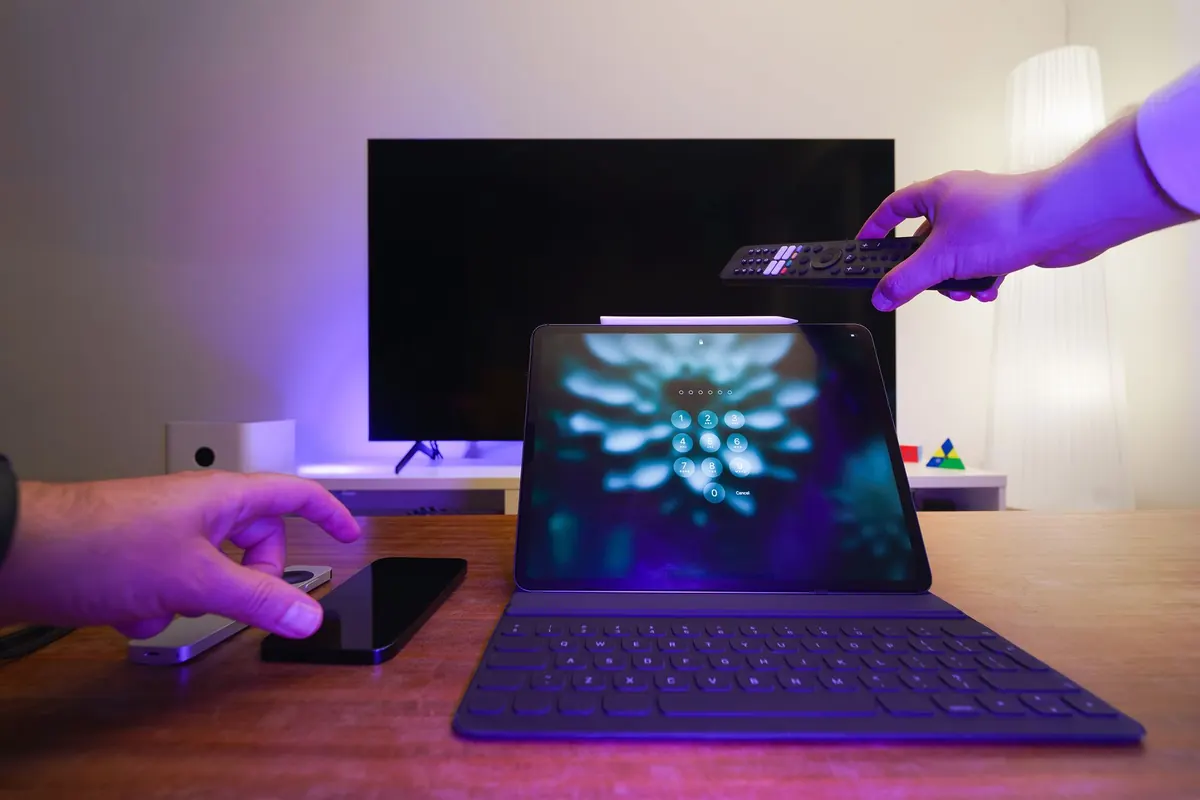
These are usually shared. Use separate user profiles on Android tablets, Guided Access on an iPad, and a child account rather than your own. A tablet signed into your main account, handed to a child with a game full of ads, is a problem waiting to happen.
Give It an Hour, Then Get On With Your Day
Work through the list in one sitting, while the device is still empty and nothing is at stake. The updates and the passcode take minutes; the recovery settings take a little longer because they ask you to think about what happens if you lose access. That is exactly why they matter.
Write the important items down — passcode, recovery codes, backup dates — and keep them somewhere a burglar will not look. Then repeat the exercise every few months, or whenever a device starts behaving oddly. Safety is not a one-time setup; it is a short habit you keep coming back to.
Photo: Christina Morillo / Pexels